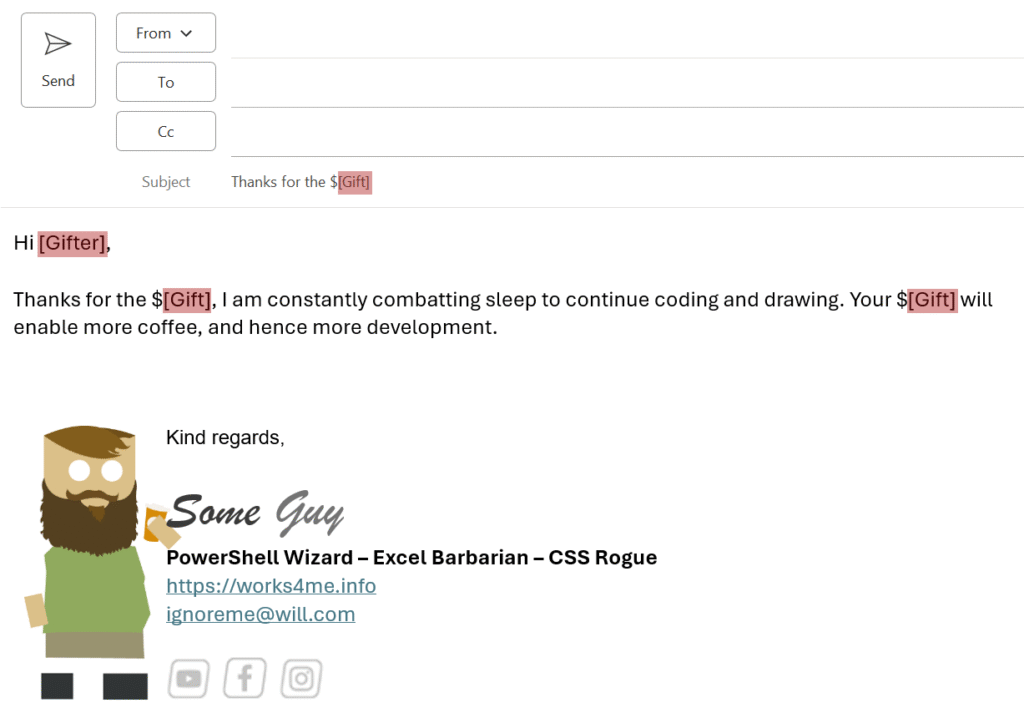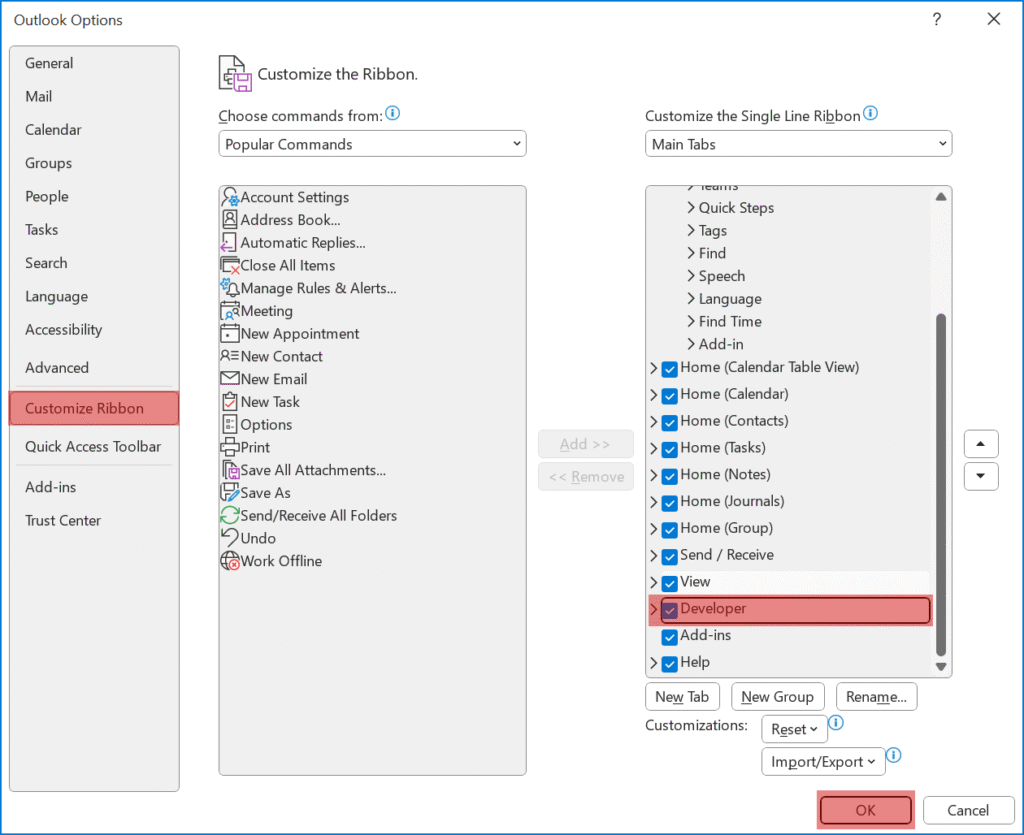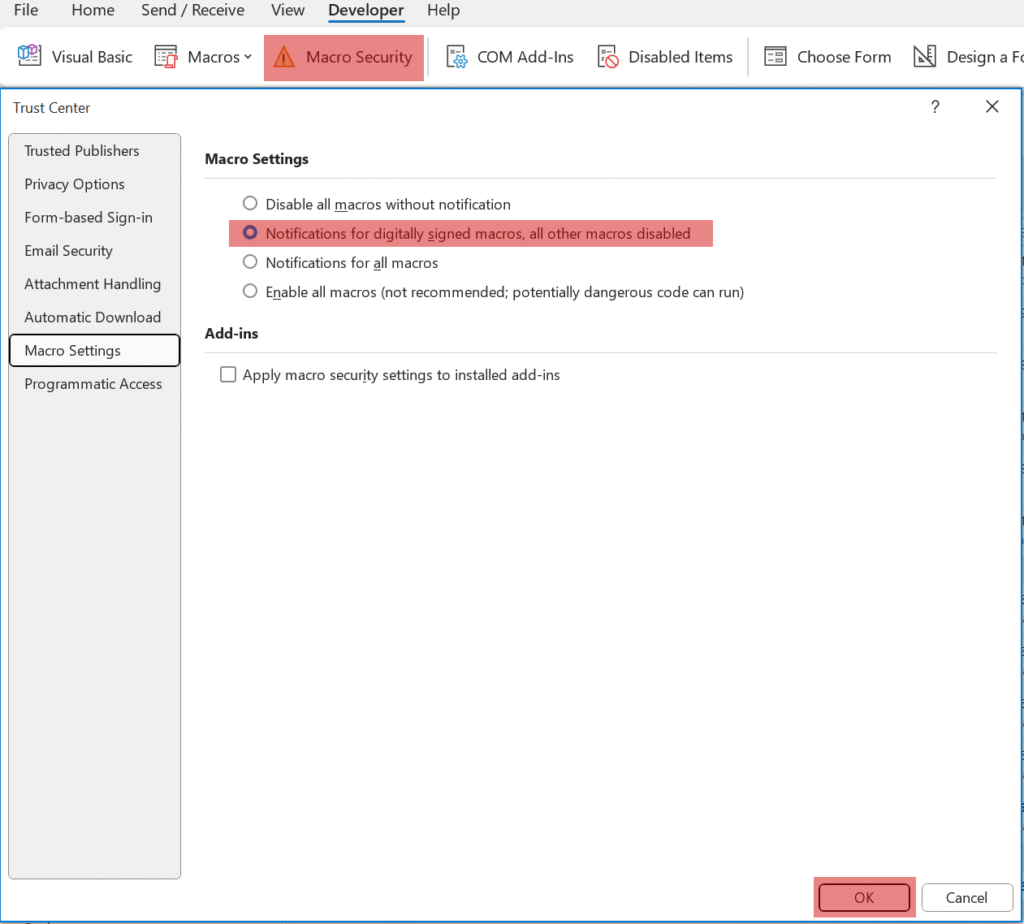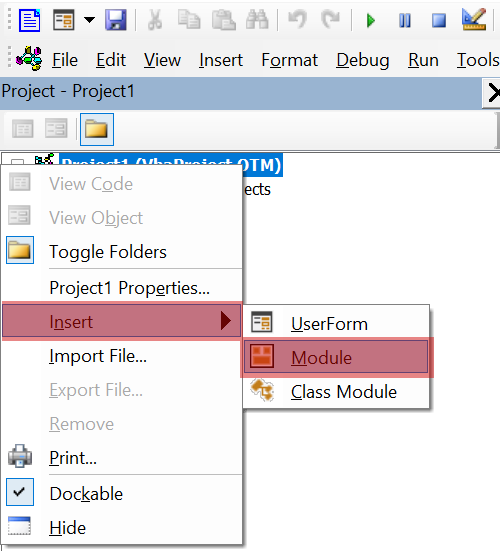
This is in all honesty, is my most useful piece of automation, and it came in part because where I work we have an older version of Outlook, and I couldn’t use the Auto-Reply add-in “My Templates“. But I do have that same pain point that would warranty the need for that add in – really common questions via email, that I tire of retyping or searching for the last time I typed it to copy, paste then personalize.
Instead I added a little Macro (it’s actually a mid size one for me), that:
- Gives me the options of custom replies
- Asks me who I’m replying to
- Adds a greeting based on the time of day
- Injects the reply at the top of the email, and will even include up to one of each of the following
- Embedded image
- Attachment
- You could always have sperate macros just to add attachments, or groups of
From there you might want to do some formatting – it is just injecting text (not formatting), so I go to any link and put a space right after it so it will automatically turn into a link, and other bits and bobs.
The Prequel
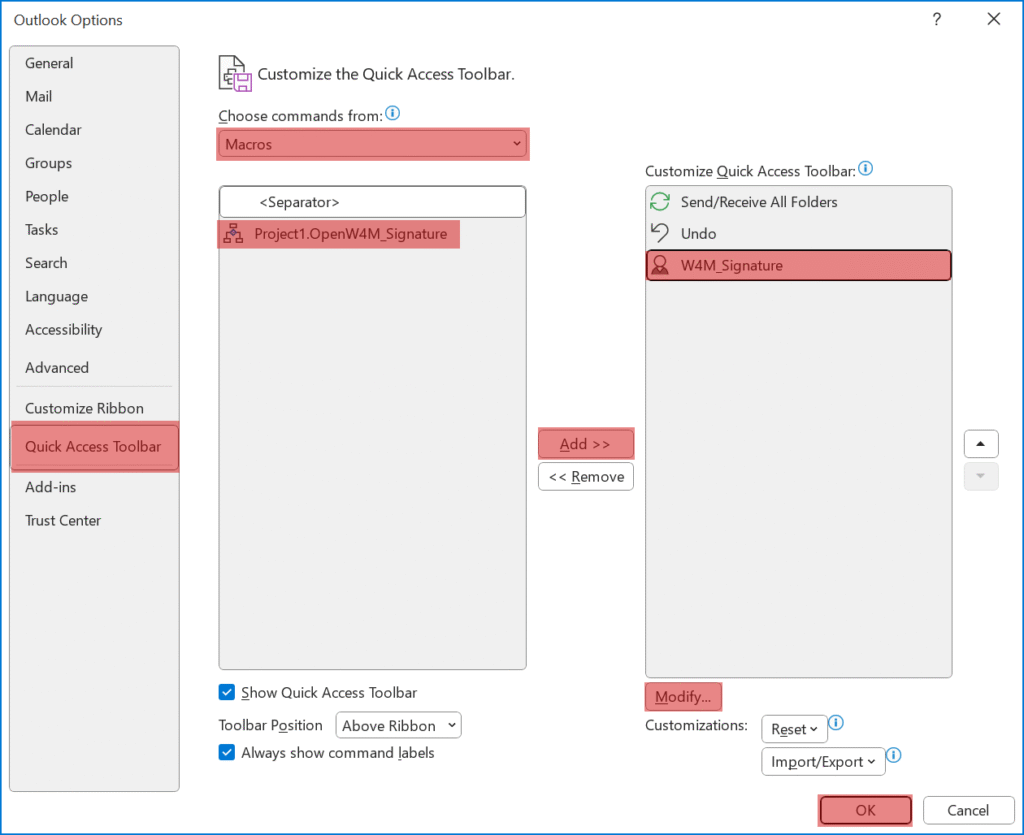
Before we jump to far in, this post is going to assume you know how to add a Macro and the shortcut to run it from Outlook. If not, then this post will help you through that:
The Code
There are some basic elements to this macro, and you can expand them to what ever scale you need. So lets look at the “components” one by one:
Collecting the Inputs
First we need to collect a few details, initially which email response you want and then a name for the reply greeting:
    '-----------------------------------------------------------------  +-+-+-+-+-+-+-+-+-+-+-+-+
    ' COLLECT REPOSPONSE CHOICE                                         +-+-+-+-+-+-+-+-+-+-+-+-+
    '-----------------------------------------------------------------  +-+-+-+-+-+-+-+-+-+-+-+-+

    responseChoice = InputBox("Choose response type:" & vbCrLf & vbCrLf & _
                             "[1] - Password Reset" & vbCrLf & _
                             "[2] - Project Access." & vbCrLf & _
                             "[3] - Software Installation" & vbCrLf & _
                             "[4] - Wrong Support" & vbCrLf & _
                             "Enter number (1-4):", "Email Response Template")
    ' Validate input
    If responseChoice = "" Or Not IsNumeric(responseChoice) Or Val(responseChoice) < 1 Or Val(responseChoice) > 4 Then
        MsgBox "Invalid selection. Please run again and choose 1-4."
        Exit Sub
    End If

    ' Get person's name
    personName = InputBox("Enter the person's name (or leave blank for generic greeting):", "Recipient Name")
    If personName = "" Then
        personName = "there"
End If you’ll notice, that you can just press enter to speed through the second question, and the default “there” will be added for a “good morning there” or “good evening there“.
Generating that Greeting
This might not look like much (and it’s not), but this reusable beauty is what makes the that personalized response have a little polish. “Good Morning Dave” , is Personal, Polite, and Timely. A three factor illusion to makes it more than an automatic response.
    '-----------------------------------------------------------------  +-+-+-+-+-+-+-+-+-+-+-+-+
    ' GENERATE GREETING                                                 +-+-+-+-+-+-+-+-+-+-+-+-+
    '-----------------------------------------------------------------  +-+-+-+-+-+-+-+-+-+-+-+-+
    Dim timeGreeting As String
    Select Case Hour(Now)
        Case 5 To 11
            timeGreeting = "Morning"
        Case 12 To 17
            timeGreeting = "Afternoon"
        Case 18 To 21
            timeGreeting = "Evening"
        Case Else
            timeGreeting = "Day" ' For very early morning/late night
End Select The Responses
Time to add the custom responses, you can build as many as you need – it injects itself at the top of the email
    '-----------------------------------------------------------------  +-+-+-+-+-+-+-+-+-+-+-+-+
    ' GENERATE RESPONSES                                                +-+-+-+-+-+-+-+-+-+-+-+-+
    '-----------------------------------------------------------------  +-+-+-+-+-+-+-+-+-+-+-+-+
    '
    '   attachmentPath="X:\Location\File.txt" will include a single attachment
    '   imagePath:="X:\Location\Picture.png" will include the picture in the [IMAGE] line
    '                                        NOTE: you can only have one image
    '--------------------------------------------------------------------------------------------

    Select Case Val(responseChoice)
        Case 1 ' PASSWORD RESET
           responseText = "Good " & timeGreeting & " " & personName & "," & vbCrLf & vbCrLf & _
                          "We don't reset passwords manually for the Fantasy domain, and instead have a password portal that you can use to  reset your password from the the real world." & vbCrLf & vbCrLf & _
                          " Just follow this link, and enter you Fantasy username, and click submit: " & _
                          "https://FantasyCan.Works4Me.info" & vbCrLf & vbCrLf & _
                          " You will then recieve an email like below:" & vbCrLf & vbCrLf & _
                          "[IMAGE]" & vbCrLf & _
                          " Clicking the 'Yes please' button will take you to the password rest portal."
            imagePath = "X:\location\Email_Example.png"
        Case 2 ' PROJECT ACCESS
           responseText = "Good " & timeGreeting & " " & personName & "," & vbCrLf & vbCrLf & _
                           "Request to access the Fantasy project are done though a request portal, and not email." & vbCrLf & vbCrLf & _
                           " Simply go to " & _
                           "https://FantasyCan.Works4Me.info" & _
                           " and fill in the forms. I've also attached the Induction Guide so you know what to expect." & vbCrLf & vbCrLf & _
                           "Please read the guide before yo apply, as the Fantasy Domain may not be for you, and its resources are limited."
           attachmentPath = "X:\location\You and the Fantasy Guide.pdf"

        Case 3 ' SOFTWARE
           responseText = "Good " & timeGreeting & " " & personName & "," & vbCrLf & vbCrLf & _
                           "We utilise a self service portal that will display all the software available to you based on your departmental water cooler structure." & vbCrLf & _
                           "https://WillSoftware.Work4Me.info" & vbCrLf & vbCrLf & _
                           "If you can't find the software you want on the Self Service portal, then chances are you don't have the correct proximity to one or more water coolers." & vbCrLf & vbCrLf & _
                           "If in doubt, just check the Water Cooler map, and swap office with someone with better proximity " & vbCrLf & vbCrLf & _
                           "https://MoreWater.works4me.info"

        Case 4 ' OTHER GROUP
           responseText = "Good " & timeGreeting & " " & personName & "," & vbCrLf & vbCrLf & _
                          "I'm sorry to say that we don't operate the DarkFantasy domain. This is something you can discuss with ignoreme@will.com for such things, who I've CC'd into this response." & vbCrLf & vbCrLf & _
                          "I've attached the joys you could have with regular fantasy in our promotional pdf. If that doesn't move you, please consider this sad kitten meme below" & vbCrLf & vbCrLf & _
                          "[IMAGE]"
            ccEmail = "ignoreme@will.com"
            attachmentPath = "X:\location\The Fantasy for Everyone.pdf"
            imagePath = "X:\location\Sad Kitten.png"


End SelectI do a basic trick here – where things are blank to begin with, and if a value is entered then the code will know to use the value in following sections.
You’ll notice the [IMAGE] bit can sit anywhere, and will be replaced by the value in imagePath.
Although I don’t do it above, you could use “imageScale” to scale the image as a percent if you require different sizing:
imagePath = "X:\location\Sad Kitten.png"
imageScale = 100Add the Text and maybe an Image
This is the true guts of the code, to “do-section” – here we inject the message, but first if an image exists, it splits the text on that point and adds the image. This allows you to have the image first or last as well; but this code only allows for one image max as written.
    '-----------------------------------------------------------------  +-+-+-+-+-+-+-+-+-+-+-+-+
    ' INSERT IMAGE                                                      +-+-+-+-+-+-+-+-+-+-+-+-+
    '-----------------------------------------------------------------  +-+-+-+-+-+-+-+-+-+-+-+-+
    '
    ' This checks if the generated responseText include "[IMAGE]" then it will spit the
    '  responseTest on that,and includes the image from the associated imagePath variable.
    '
    '--------------------------------------------------------------------------------------------
    If InStr(responseText, "[IMAGE]") > 0 Then
        ' Split text at image placeholder
        Dim beforeImage As String
        Dim afterImage As String
        Dim imagePos As Integer

        imagePos = InStr(responseText, "[IMAGE]")
        beforeImage = Left(responseText, imagePos - 1)
        afterImage = Mid(responseText, imagePos + 7) ' 7 = str length of "[IMAGE]"

        ' Insert text after image
        wdRange.InsertAfter afterImage & vbCrLf & vbCrLf

        If Dir(imagePath) <> "" Then
            wdRange.InsertAfter vbCrLf
            wdRange.Collapse Direction:=1

            ' Insert the image
            Dim inlineShape As Object
            Set inlineShape = wdRange.InlineShapes.AddPicture(imagePath, False, True)

            ' Optional: Resize image (adjust as needed)
            With inlineShape
                .ScaleHeight = imageScale ' % of original size
                .ScaleWidth = imageScale  ' % of original size
            End With

            wdRange.Collapse Direction:=1
            wdRange.InsertAfter vbCrLf
            wdRange.Collapse Direction:=1
        End If
        '----------------------------------------
        ' Insert text before image
        wdRange.InsertAfter beforeImage
        wdRange.Collapse Direction:=1 ' Move to end of inserted text
        '----------------------------------------

    Else
        ' No image, just insert text normally
        wdRange.InsertAfter responseText & vbCrLf & vbCrLf
End IfAdding an Attachment
If you’ve opted for one, this bit of code adds an attachment. This is that bit I talked about having something empty by default, but if you do add something, then the code reacts.
    '-----------------------------------------------------------------  +-+-+-+-+-+-+-+-+-+-+-+-+
    ' ADD ATTACHMENT                                                    +-+-+-+-+-+-+-+-+-+-+-+-+
    '-----------------------------------------------------------------  +-+-+-+-+-+-+-+-+-+-+-+-+
    '
    ' This checks if you've included an attachment, and if so, adds it.
    '
    '--------------------------------------------------------------------------------------------
    If attachmentPath <> "" Then
        If Dir(attachmentPath) <> "" Then
            olItem.Attachments.Add attachmentPath
        End If
End IfFinally adding to the CC
This is the latest addition, and was a request by a colleague. It effectively check if the email address is already in the TO or CC, then adds it to the CC if required
    '-----------------------------------------------------------------  +-+-+-+-+-+-+-+-+-+-+-+-+
    ' ADD Email to CC                                                   +-+-+-+-+-+-+-+-+-+-+-+-+
    '-----------------------------------------------------------------  +-+-+-+-+-+-+-+-+-+-+-+-+
    '
    ' This checks if you're ensuring an email address is included
    '
    '--------------------------------------------------------------------------------------------
     If ccEmail <> "" Then
        If InStr(LCase(olItem.To), LCase(ccEmail)) = 0 Then
            If InStr(LCase(olItem.CC), LCase(ccEmail)) = 0 Then
                ' Email not found in CC field
                If olItem.CC = "" Then
                    olItem.CC = ccEmail
                Else
                    olItem.CC = olItem.CC & "; " & ccEmail
                End If
            End If
        End if
End ifWarning Note!
This macro runs only in a popped out email – you can’t run this from the viewing pane of Outlook. That’s why I’d recommend setting the shortcut to the macro as part of a popped out email, not Outlook it self – that being said, there is a check at the top to warn you:
    ' Check if we're in an active email
    Set currentInspector = Application.ActiveInspector
    If currentInspector Is Nothing Then
        MsgBox "Please open an email in its own window."
        Exit Sub
End IfWhat it Doesn’t Do
Like all my solutions, these aren’t things I’ve written because I think you could use them, or because it might attract traffic to this site. These are the solutions I use to make my IT day smoother and easier. Which unfortunately means they can fall short of the perfect solution, for the functional one I needed. Here what you could add:
- Handle Multiple Attachments
- Additional word swaps to add customized responses
- Another numbered set to add certain sub responses
- Search for other bits to swap out like the department or other detail
- Inject a specialized signature – or even options of signatures.
Download the Macro
Reply Options.vba https://github.com/Works4Me-Info/Outlook_Automatic_Replies